
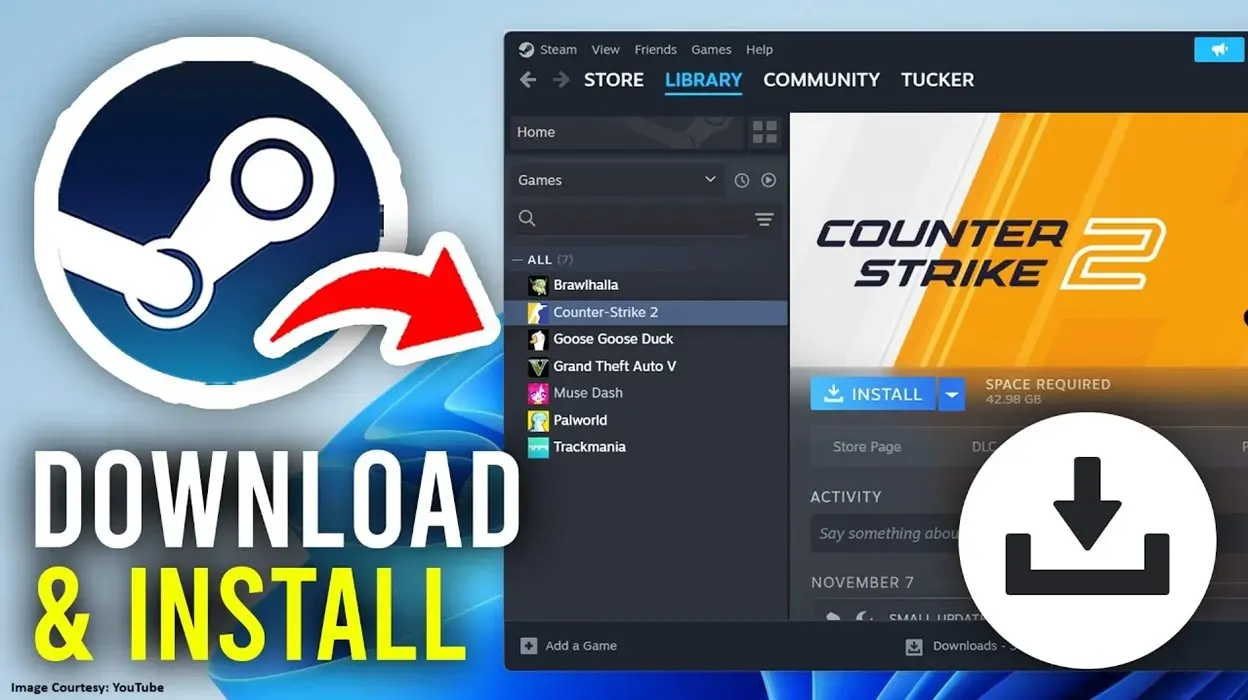
How to download games: Are you new to the world of gaming and still figuring out a few things? Like downloading the games that interest you or the one that your gamer friend suggested to you? Don’t worry because we have got your back! Let us quickly navigate you on how to download games on PC via the cloud streaming platform called Steam. Have you heard about Steam before? If not, then brace yourself because, as someone who is new to online gaming, you are going to spend a lot of your time on platforms like Steam.
Steps to download a game on PC via Steam
Here’s your quick guide to grabbing your hands at any game on the streaming platform.
Step 1: Install steam!
If you haven’t already, then install the Steam gaming app on your PC. For that, you just have to navigate to the official Steam website. The website is responsible for handling all the operations, including buying, downloading, and launching games. So, having it on your gaming PC is a must for an aspiring gamer.
After reaching the official website, click on the “install Steam” button and download the installer on your device. Then, to finish the downloading, run it and follow the setup instructions. After installing, open Steam and get ready to follow step 2 of the instructions.
Step 2: Create your Steam gaming account
If you don’t have a Steam gaming account, create one by clicking on “Create a Free Account” and following all the required steps afterward. And if you are an existing user, then just log in to the account and brace yourself to download your choicest games.
Step 3: Look for the games you download
Now that you have logged in to your Steam account, it’s time to do some research and look for the games that you have in your mind to download. For that, you have to go to the Steam store at the top of the homepage.
Once you locate the search bar, in the top right corner of your screen, enter the name of the game you are looking at. A list of game results will appear on your search screen. They will also include details like trailer, screenshots, price, reviews to make your research easy and quick. Find the one that satisfies your search and get ready for the next step.
Step 4: Buy the game!
The game that you have just found needs to be paid for if it is not a free game. There’s no amount to be paid to download a free game, but the paid ones need to clear off your dues before you get your hands at them. So, start with the payment process of the game to download it.
The steps include:
- Click “Add to Cart” for the game
- Then, click on the “Purchase for myself” option if you are not gifting it to someone.
- Now, choose the payment method, which can be anything including card, net banking, wallet, etc. fill in all the required details of your card and then proceed.
- Complete the game payment step and get ready to download it on your PC.
Also, in case of a free game, just click on the “Play Game” option instead and enjoy playing it on the platform itself.
Step 5: Download the game
Once you have purchased the game, you have to do a few more things that will make the game yours forever. This includes visiting the library of your Steam account. Here’s how you do it.
- In the top menu on your Steam home screen, go to ‘Library’
- Select the game you just purchased from the list on the left in the Steam game library.
- Click ‘install’ on that game or games if you have purchased multiple of them.
- Now, choose the location where you want to install the game on your PC.
- Then, click on ‘Finish’ to complete the steps.
- Finally, Steam will download the game from you on your PC and the location selected by you.
Once the download is complete (you can see progress at the bottom of the screen), check if the game is available on your PC.
Step 6: Check and play the game!
Once the download finishes, open the game and play it. Although there are fewer chances of any fault. But you must confirm the game is working fine, and you are able to play it freely. Once this confirmation is done, you can relax and play the game however and whenever you like!
Additional tips on downloading games via Steam
Here are a few tips that will make your game download from Steam a lot easier and a lot less problematic!
- The online games are difficult to store. Make sure you have enough storage space on your PC to download and store the games. If there’s any doubt, first make space for the game downloads and then purchase and download them.
- The games are as big as 50–100 GB+ so, using Wi-Fi or fast internet is highly suggested for uninterrupted downloading.
- Don’t buy any game without knowing its reviews or its price. The games are usually cheaper to buy during seasonal sales and limited period offers.
Conclusion – How to download a game
Downloading games are for sure easier than playing and winning them. We hope the steps mentioned above have answered your question about how to download a game via Steam. If your task has been simplified with these details, then share your experience with mgcbuzz.com of downloading a game from Steam. Don’t forget to stay tuned to this space for more online gaming-related tips and tricks.
Read Related Articles:




Trending
Best Gaming Accessories for Content Creators to Buy During the Amazon Great Indian Festival Sale
Which Gaming Character Should You Dress Up as for Halloween 2026?
Is Silver Pines Good Enough for Halloween Gaming?
Why Anime Lovers Must Look Forward to ONE PIECE: Grand Gourmet